Aitoskr
gumroad
Also includes two small nose rings and two belly piercings (now updated to support the 3.1 Nardoragon!)
Uses VRCFury for simple drag and drop installation!
This product may recieve updates.
Requires the base Nardoragon model
Requires use of VRCFury to install
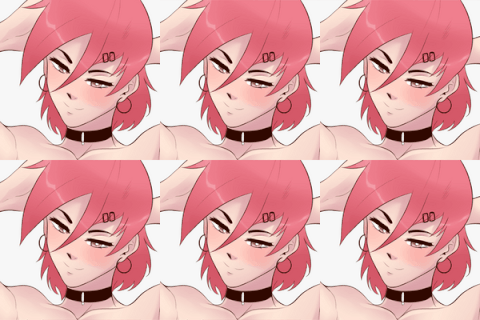
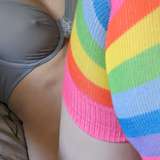
Comes with extensive blendshapes to resize and hide each individual piercing, with three basic colour options, Gold, Silver, and Black and a custom Gold preset that was used while taking the screenshots shown above
With all prefabs installed, on a base 3.0 Nardoragon, the performance rating is reduced from Good to Medium
You CAN NOT
NOTE : Installation instructions for older versions can be found on the downloads page. These versions are obsolete however and I will not respond to anyone trying to get help installing them.
Step 0 : Ensure you have backed up your unity project and existing model. If you do not wish to backup your avatar, proceed at your own risk.
Step 1 : Download VRCFury & the Nardoragon and import them to your unity project (You may already have VRCFury Installed as is it required by the Nardoragon)
Step 2 : Import the "AitoskrAccessoriesPack_1.5.unityproject" file into your unity project
Step 3 : Drag your desired prefab(s) into the Hierarchy tab and place them within your Nardoragon
Note : Be aware that with every additonal prefab installed there will be a corresponding impact on your avatars performance rating
Step 4 : Installation is complete, the assets should be visible in the scene. Make sure to enter play mode to allow VRCFury to attach it if it appears to look strange at first. You can now upload your avatar.
The image below shows how your hierarchy should look, with the piercings and rings both installed on a five fingered Nardoragon
You can access the blendshapes of the model by clicking on either the "Piercings" or "Rings" object in your hierarchy and then expanding "Blendshapes" in the inspector view. Adjust any of the sliders under "Hide Accessories" or "Customisation" to individually hide any part you want
To change to a different colour option, you can of course manually edit the material or, click on the object in the hierarchy and scroll down to "Materials" in the inspector view and expand it. Drag one of the alternate materials into the "Element 0" box. To create custom edits the texture files are located in the "Texture" folder and on the download page
Simply delete the prefabs in your hierarchy and the pack will be removed
If you have any issues with the installation or wish to give feedback you can contact me on telegram : @Aitoskr or Discord : aitoskr I am also willing to do edits or modifications on commission
Credit to Hasel for taking the VRC pictures
This page includes all the files needed to install the pack to your avatar! Installation instructions can be found on the next page
NOTE : Installation instructions for older versions can be found on the "Files" page. These versions are obsolete however and I will not respond to anyone trying to get help installing them.
Step 0 : Ensure you have backed up your unity project and existing model. If you do not wish to backup your avatar, proceed at your own risk.
Step 1 : Download "VRCFury" & the "Nardoragon" and import them to your unity project (You may already have VRCFury Installed as is it required by the Nardoragon)
Step 2 : Import the "AitoskrAccessoriesPack_1.5.unityproject" file into your unity project
Step 3 : Drag your desired prefab(s) into the Hierarchy tab and place them within your Nardoragon
Note : Be aware that with every additonal prefab installed there will be a corresponding impact on your avatars performance rating
Step 4 : Installation is complete, the assets should be visible in the scene. Make sure to enter play mode to allow VRCFury to attach it if it appears to look strange at first. You can now upload your avatar.
The image below shows how your hierarchy should look, with the piercings and rings both installed on a five fingered Nardoragon
You can access the blendshapes of the model by clicking on either the "Piercings" or "Rings" object in your hierarchy and then expanding "Blendshapes" in the inspector view. Adjust any of the sliders under "Hide Accessories" or "Customisation" to individually hide any part you want
It is recomended that when altering the materials you duplicate a copy of each material you alter to edit on and rename it as the default materials may be overwritten or deleted inadvertently
To change to a different colour option, you can of course manually edit the material or, click on the object in the hierarchy and scroll down to "Materials" in the inspector view and expand it. Drag one of the alternate materials into the "Element 0" box. To create custom edits the texture files are located in the "Texture" folder and on the download page
Simply delete the prefabs in your hierarchy and the pack will be removed
This is designed to work specifically with the Extra ears that are included with the 3.1 version of the Nardoragon, other assets may not work with this pack.
Installing the piercings onto the extra ears for the Nardoragon requires additional setup
Step 0 : Place the "Extra Ears" prefab onto your Nardoragon
Step 1 : Drag the "AitoskrExtraEars" prefab into the "Extra Ears" object within the hierarchy, it should look as shown below

Step 2 : Right click on "AitoskrExtraEars" and navigate to "Prefab" > "Unpack" and click on it.
Step 3 : Click on "AitoskrExtraEars" and within the inspector panel under "Armature Link" drag the "Extra Ears" object from your hierarchy into the "Target object" field.

Installation is now complete and the piercings should be installed onto the extra ears. The extra piercings use the same UV map as the base piercings, so any textures you made for the base piercings will work fine on the extra piercings